• POSLavu Customers: Plain Vanilla Bakery (Holland Village)

    0

    The most intu­itive, state of the art, iPad-based Wire­less Point of Sales sys­tem can be found at these great businesses.

    Plain Vanilla Bak­ery @ Hol­land Village

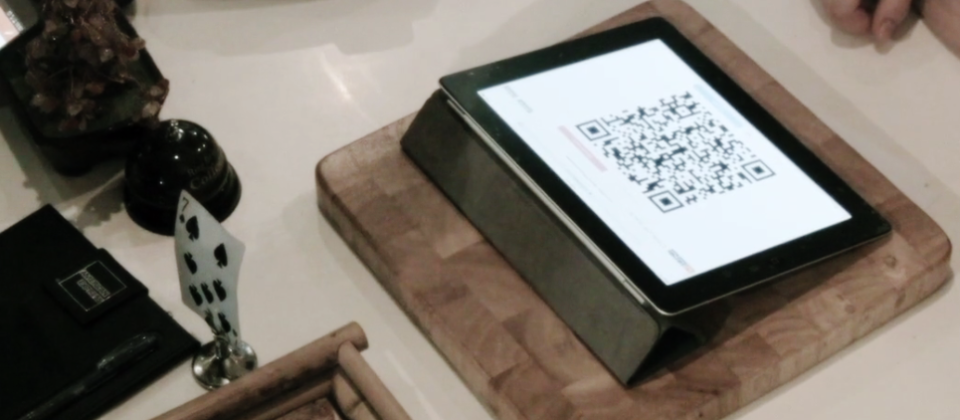
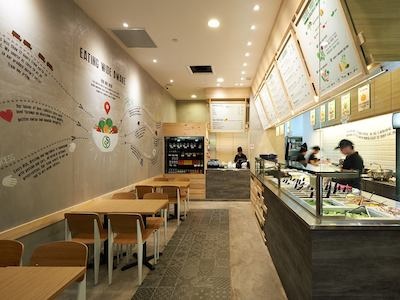
    Cup­cakes galore, too much choices. PV bak­ery is located at 2nd floor unit and if you have been there, you’ll realise how much magic Vanessa does with that lim­ited amount of space. That’s also where POSLavu comes in, the iPad is mounted on a 2-arm stand and it can be col­lapsed; keep­ing it neat and sleek against the side cabinet.

    Visit them at http://www.plainvanillabakery.com/
    https://www.facebook.com/pvbakery

  • The Wallee Kick & Pivot iPad stands are now available in Singapore

    2

    The Wallee case for iPad 3 is a seam­less, lightly-rubberised & pre­ci­sion moulded pro­tec­tive case that is com­pat­i­ble with a grow­ing range of mod­u­lar acces­sories, each of which con­nect to the case with a sim­ple turn and click.

    Avail­able in Black & White

    The Wallee case (White) for new iPad

    The Wallee (black) case for new iPad

    The Wallee case can be used with the fol­low­ing stands and mount­ing options:

    • Mount to the wall with the Wall Mount
    • Dis­play it on your desk with the Kick or Pivot
    • Mount it in your car with the Head­rest adapter.

    The Wallee wall mount

    The Wallee Kick stand

    The Wallee Head­rest stand

    The Wallee Pivot stand

    Get in touch with us for The Wallee prod­ucts in Singapore!

  • POSLavu Tutorial: How do i split/ un-split into separate checks?

    0

    Split  an order into sep­a­rate checks to allow cus­tomers who want to pay separately.

    POSLavu sup­ports split­ting into sep­a­rate checks (equally in x checks), items splits (dif­fer­ent checks that con­tain dif­fer­ent menus from the order) as well as hybrid (sep­a­rate items with some equally shared items)

    This tuto­r­ial will guide you on all 3 types of split checks. Ok. Let’s get to the easy stuff first.

    Split­ting an order equally

    To do a quick equal-split, hold and slide on the “Split” button.

    A pop-up dia­log box will ask you. “Num­ber of Checks”

    e.g. to split into 3 checks. Enter “3” and press “Go”.

    Done! Your order is now split into 3 equal checks.

    Split items into sep­a­rate checks

    Turn on “Split” mode by press­ing on the “Split” but­ton, you will see that the split but­ton turns to “yel­low” (ON)

    Touch on the first item that you want to split into a new check and it will be auto­mat­i­cally split into “Check 2″

    For addi­tional items, touch on the item and a dia­log box will popup with the options
    1. “Check 2″ (List of all addi­tional checks, e.g. Check 3, Check 4)
    2. “Split Evenly” (Item will be split equally, depend­ing
    3. “New Check” (Item will be split into a new check, increas­ing the num­ber of checks by 1)


    Hybrid split

    Depend­ing on the type of split that you want to per­form, you can fol­low the steps for items and equal-split to achieve a hybrid split.

    Exam­ple 1:

    4 item-split check with 2 equal-split items.

    1. Start off by doing item splits (into 4 sep­a­rate checks)
    2. For shared items, choose the “Split Evenly”

    Exam­ple 2:

    4 equal-split checks with sep­a­rate items (into Check 2)

    1. Start off by doing a equal-split into 4. (Hold and Slide on Split but­ton; then enter “4” into “Num­ber of Checks”
    2. For indi­vid­ual item. Click on it and select the check that you want to put it in (in our case, Click and choose “Check 2″)

    Un-Split Checks and Join merged orders

    The “Hold and Slide” Split but­ton can also be used to “un-split” checks. E.g. Enter “1” in the “Num­ber of Checks” dia­log box.

    This is also use­ful, to “un-split” merged orders. When you merge orders, the bill will be auto­mat­i­cally be “split” into 2, to quickly make it a sin­gle check, enter “1” in the “Num­ber of Checks” box.


  • Windfall POS Stand: Your secure iPad stand for POSLavu

    2

    Our ship­ment of Wind­fall iPad POS Stands have arrived in Singapore!

    Lim­ited quan­ti­ties are available.

    Sell­ing at S$214. (inclu­sive of 7% GST)
    Our POSLavu cus­tomers do enjoy spe­cial pric­ing. Get in touch quick!
    Get yours today!

    Comes in 4 colours: Graphite, White, Red, Black.

    Beau­ti­ful

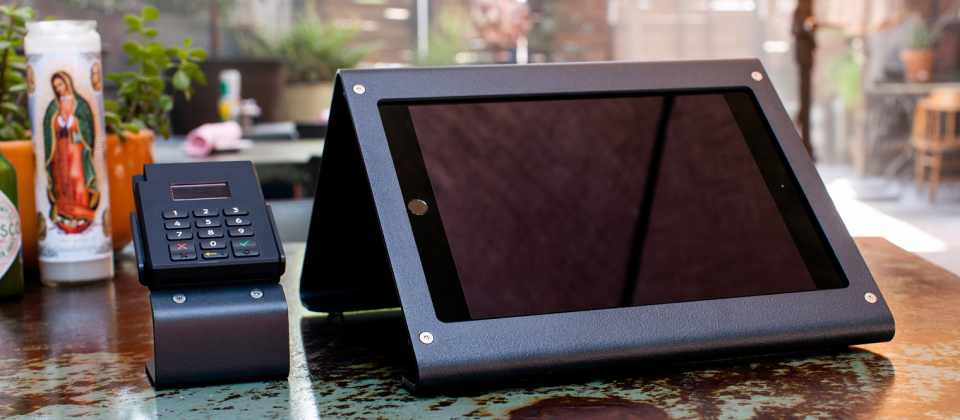
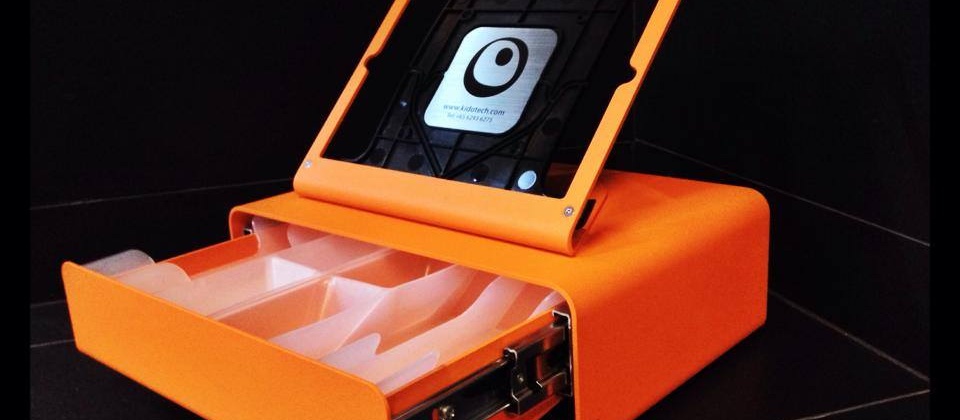
    Your impres­sive shop deserves bet­ter than a clunky POS or chintzy iPad stand. WindFall’s ele­gant design exudes strength while it pre­serves the slim pro­file of the iPad. Mount your cash drawer and receipt printer out of sight for the ulti­mate point-of-sale experience.


    Kens­ing­ton Secu­rity Slot

    Can’t drill holes in your coun­ter­top? No wor­ries. Wind­Fall fea­tures a forward-facing Kens­ing­ton Secu­rity Slot. This means you can dis­creetly secure your Wind­Fall to a table leg via a Kens­ing­ton Secu­rity Cable — great for cre­at­ing ad-hoc point-of-sale stations.

    Secure Yet Fully Functional

    Wind­Fall keeps your iPad secure while keep­ing its cam­eras, speak­ers, cel­lu­lar antenna, 30-pin port, audio jack, and screen lock but­ton acces­si­ble. Only the vol­ume rocker and screen-rotation-lock switch are inac­ces­si­ble. Hint: you can quickly access those func­tions with a double-tap to the Home button.

    Installing Wind­Fall

    See how to install Wind­Fall in var­i­ous ways.

    For use with your iPad 2 and the new iPad.

    Not con­vinced? Go read some reviews.

    http://blueantstudio.blogspot.sg/2012/07/heckler-designs-windfall-ipad-stand.html

  • POSLavu : The iPad POS with iSPRINT

    2

    POSLavu: Claim up to $2,000 of the qual­i­fy­ing costs

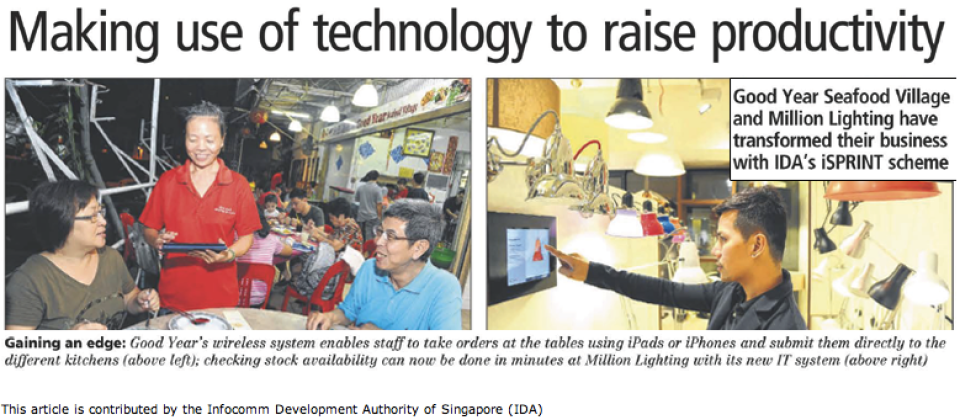
    POSLavu is now avail­able under the iSPRINT Pack­aged Solu­tion for Point of Sales sys­tems. Your busi­ness can claim up to 70% of qual­i­fy­ing costs to imple­ment POSLavu and get up to S$2,000 back.

    (This is sub­jected to ful­fill­ing the SME eli­gi­bil­ity cri­te­ria and the avail­abil­ity of funds.)

    For details on the iSPRINT grant, visit http://www.ida.gov.sg/Collaboration-and-Initiatives/Initiatives/Store/iSPRINT-Packaged-Solutions.aspx

     
    POSLavu Sil­ver Pack­age (Basic)
    POSLavu Gold Pack­age (typical)
    Note: Prices listed are sub­jected to 7% GST
    Soft­ware
    License$1,599.00$2,399.00
    12 Month Hosting$660.00$1,320.00
    Con­sul­tancy / Setup / Configuration
    Net­work Con­sul­ta­tion / Setup / Configurationfrom $100from $325
    Menu Con­sul­ta­tion / Setup / Con­fig­u­ra­tion (optional)from $100from $325
    Seat­ing Con­sul­ta­tion / Setup / Configurationfrom $75from $300
    Train­ing
    Train­ing (4 hours)from $200from $400
    Sup­port
    12 Month Ser­vice Supportincludedenhanced sup­port available
    Licensed for:
    Print­ers25
    iPad12
    iPhone / iPod Touch110
    UsersUnlim­itedUnlim­ited
    Hard­ware
    iPad , iPod­Touch, Cash Drawer, Printerfrom $1,300-
    iPad (x2) , iPod­Touch (x4), Cash Drawer, Printer (x2)-from $3,500
    Total: from $4,500 — $5,800from $9,500


    Want to learn more? Talk to us for more infor­ma­tion and setup a demo ses­sion now.

    iSprint - support up to 70% of qualifying costs!

    (POSLavu) the most amaz­ing, state of the art point of sale system”.

    - Gor­don Ram­say (Kitchen Nightmares)

  • POSLavu Tutorials : How to manage your menu groups, categories, and items

    0

    FAQs

    [Menu Groups | Menu Categories | Menu Items]

    Menu Groups

    Q1: How do i man­age Menu Groups ?

    A1: Go to “Add/ Edit Menu Groups”

    To Add a New Menu Group, type in the new name for Menu group in the “Add New Group” box and press “Enter”.
    To Edit a Menu Group name, click on “(rename)” beside the Menu Group name.
    To Delete a Menu Group, click on “(delete)
    To change the order of the Menu Groups, click on the arrows (Up or Down arrows) to rearrange.

    Menu Cat­e­gories

    Menu Cat­e­gory Options

    1. Reorder my Menu Cat­e­gories within a Menu Group

    2. “Order Man­u­ally”: How do I move a newer Menu Cat­e­gory to the top?
    Click on “Cat­e­gory Details”, you will see a “Dis­play Order : [num­ber; default = 0]“
    To move a cat­e­gory lower, input a big­ger num­ber. e.g. “0” will be at the top, above all the “1” and so on.
    If Menu Cat­e­gories have the same num­ber, the ear­lier one will be above.

    3. Explain the var­i­ous options for “Cat­e­gory Details“
    i. “Dis­play in App”, default value = “Yes”. “No” will hide the whole menu cat­e­gory from POSLavu.
    ii. “Descrip­tion”, Allow you to type descrip­tion to assist your servers describe your Cat­e­gory.
    iii. “Print”; default = “Yes”, “No” will cause the item not to be printed in Kitchen Orders (use­ful for Menu Items that are han­dled by the server. e.g. Cook­ies at the counter)
    iv. “Apply Tax rate”, “Cus­tom Tax rate”, “Tax included in prices”.  Tax related func­tions, used to over­ride the default loca­tion set­tings.
    v. “Super Group Id” . Set your cat­e­gory to a Super Group for report­ing pur­pose. See Tuto­r­ial: Super Groups.
    vi. You can also set images to your menu cat­e­gories and menu items. See Tuto­r­ial: How to upload images.


  • POSLavu Tutorials : How to upload an menu item image or category image?

    0

    1. To upload image to Menu Cat­e­gory or Menu Item.

    Choose the Cat­e­gory or Menu item by click on the box (on the left) of Cat­e­gory Details or Details.

    A win­dow will pop-up to allow you to select your file.

    Choose Cat­e­gory or Item to upload image.

    2. Click on “Choose File”

    To select your image on your pc/ mac, browse to your image file and click “Open”.
    Note: This will not work on the iPad.

    Select your image/ pic­ture file

    Then select the image file using the drop-down selec­tion list and click on Apply.

    Select your image using the drop-down list and click Apply to set the image


    3. Done!

    Do a “Reload Set­tings” on your POSLavu appli­ca­tion, and look out for your new images for your menu cat­e­gories and items.

  • POSLavu Tutorials — How to use Super Groups (Reports)

    0

    What is Super Groups?

    Under your POSLavu Reports — Prod­uct Reports — Super Groups

    Super Groups allow you to com­bine mul­ti­ple menu cat­e­gories, so that you can get a com­bined prod­uct reports.  Typ­i­cal use  to cre­ate com­bined reports for log­i­cal menu group­ings. e.g. Track all alcohol-based drink sales, or Total Food report.

     1. Start off by cre­at­ing a new Super Group

    POSLavu account -> Menu -> Super Groups

    Add a New Super group e.g. Food


    2. Add your Menu cat­e­gories to a Super Group

    menu category details

    Menu Cat­e­gory Details

    Select Super Group Id

    Click on the “Cat­e­gory Details” but­ton
    and Select your Super Group Id and press the “Apply” button

    Repeat for All Menu Cat­e­gories that you want to be included in that Super Group.

    Remem­ber to click on the “Save” but­ton or you will not save the Cat­e­gory Details set­ting changes!


    3. Check your Super Group reports

    Under POSLavu Account -> Reports -> Prod­uct Reports (Super Groups)

  • Meraki Systems Manager

    0

    IT man­age­ment made easy.
    Track and access every device on your net­work. Per­fect for BYOD (Bring your own device) networks.

  • What is Meraki? Cloud managed access points and network switches

    0

    Mer­aki devices are now avail­able in Sin­ga­pore via Kidotech.

    Want to learn more? Talk to us for more infor­ma­tion and setup a demo session.


    What is Cloud Networking?

    Cloud Net­work­ing pro­vides cen­tral­ized man­age­ment, vis­i­bil­ity, and con­trol with­out the cost and com­plex­ity of con­troller appli­ances or over­lay man­age­ment software.

    Meraki’s prod­ucts are built from the ground up for cloud man­age­ment, and come out of the box with cen­tral­ized man­age­ment, layer 7 device and appli­ca­tion vis­i­bil­ity, real time web-based diag­nos­tics, mon­i­tor­ing, report­ing, and much, much more. Mer­aki deploys quickly and eas­ily, with­out train­ing or pro­pri­etary com­mand line interfaces.

    Meraki’s founders invented Cloud Net­work­ing while work­ing as grad­u­ate stu­dents at M.I.T. Mer­aki now has a com­plete line of cloud net­work­ing prod­ucts that power over 18,000 cus­tomer net­works, includ­ing mas­sive global deploy­ments with tens of thou­sands of devices.

    Meraki’s Cloud Man­aged Access Points

    Intro­duc­ing Meraki’s Dashboard

    How it works?

    Mer­aki prod­uct archi­tec­ture. http://www.meraki.com/products/architecture/

Page 1 of 3123»